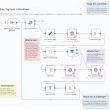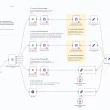

I remember the moment I realised my inbox was running me—important requests buried under newsletters, confirmations cluttering the main view, and action-required messages slipping through the cracks. That’s when I built an n8n workflow to auto-categorise Outlook emails using AI, giving busy professionals and support teams a simple way to regain control.
Why Intelligent Email Categorisation Matters
Every day, professionals across sales, support, and operations spend precious minutes—or even hours—manually triaging emails. That time could be spent:
- Preparing proposals rather than sorting promotions
- Responding to clients instead of hunting down receipts
- Collaborating on projects rather than flagging follow-ups
By offloading that initial categorisation step to n8n + an AI Agent, you ensure every message lands in the right bucket—so your team sees exactly what they need, when they need it.
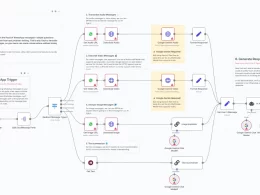
How the Workflow Works
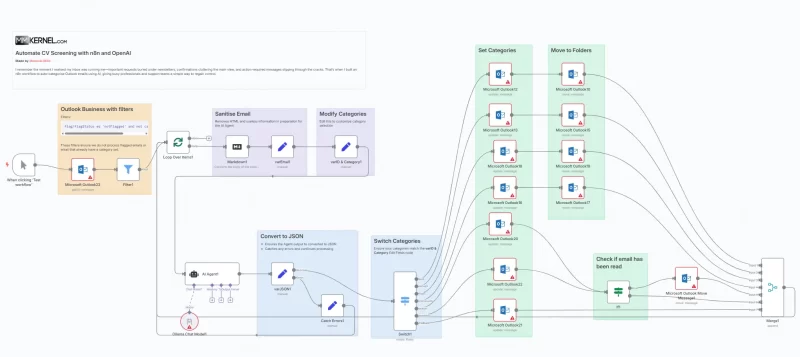
- Fetch Unread, Unflagged Emails
A Microsoft Outlook node pulls in every new mail that hasn’t been flagged or categorised yet—so you never reprocess what you’ve already handled. - Sanitise and Prepare Content
Using a Markdown conversion node and a Set node, the raw HTML body is stripped of tags, tables, and excess whitespace—leaving just clean text for AI analysis. - Define Categories
Before AI runs, a Set node defines exactly seven allowed categories:action,junk,receipt,SaaS,community,business, andother. - AI-Driven Categorisation
An n8n LangChain Agent node sends the subject, sender metadata, and body to a language model with a system prompt that enforces valid JSON output. The model returns: jsonCopyEdit{ "subject": "...", "category": "business", "subCategory": "action", "analysis": "..." }ensuring consistent, machine-readable results every time. - Route and Label Messages
A Switch node directs each email to the appropriate Outlook update or move operation, assigning categories and relocating messages into dedicated folders like Receipt, Junk, or Actioned.
Key Benefits for Your Team
- Zero-Touch Triage: New emails are auto-labelled and sorted without manual effort.
- Consistent Rules: The AI follows the exact same criteria every time—no more subjective guesses.
- Faster Response: Critical “action” emails pop up in your primary folder, while newsletters and receipts quietly file away.
- Customisable Categories: Tweak the category list or subcategory logic to match your organisation’s needs.
Tips for a Smooth Roll-Out
- Adjust Your Filters
Define which folders and flags to include—ensure you don’t accidentally reprocess archived or already-handled mail. - Refine the AI Prompt
Emphasise nuance for your business: more weight on client communications, stricter junk criteria, or extra subcategories as needed. - Batch-Size Tuning
If you see rate-limit errors, adjust the SplitInBatches node to process smaller groups of emails at a time. - Monitor & Iterate
Keep an eye on category accuracy for the first week. Tweak the system message or JSON schema to catch any misclassifications.
Take back your inbox! Import this workflow into your n8n instance, connect your Office 365 credentials, and watch as AI transforms your email chaos into a streamlined, actionable pipeline.